erwinAI is a generative AI bot that automatically generates definitions for undefined business terms and classifications for unclassified columns. You can use suggested prompts or enter custom ones. After results are generated, you can evaluate them and choose to submit or regenerate, maintaining a human-in-the-loop workflow.
You can access the bot from the Discover Assets, Metadata Manager, or Business Glossary Manager modules.
erwinAI Bot is available in version 15.1. Ensure that your administrator has enabled erwinAI for you.
Generating Classifications
To generate classifications, follow these steps:
-
Go to one of the following dashboards:
-
Discover Assets
-
Data Catalog > Metadata Manager
-
Data Literacy >Business Glossary Manager
-
Data Literacy > Data Marketplace
-
-
In the bottom right corner, click
 .
.The erwinAI bot opens.
-
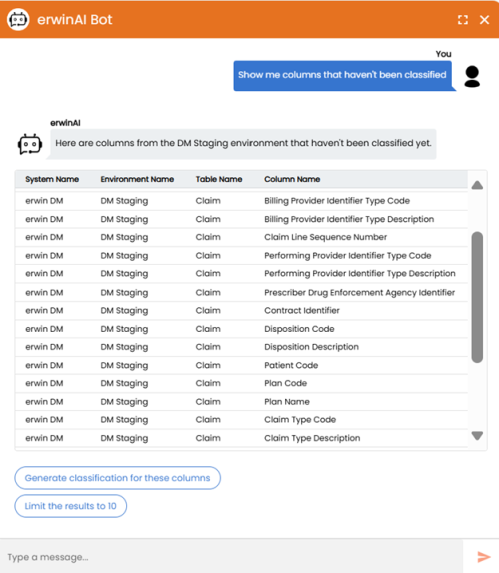
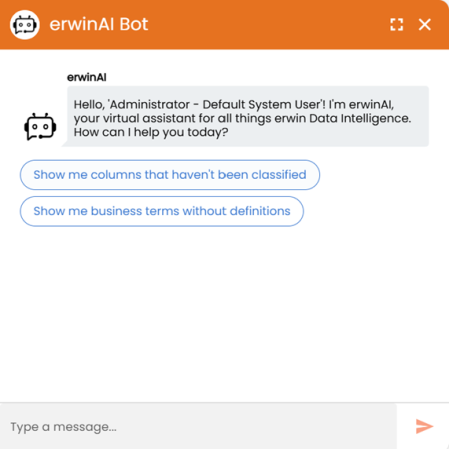
Click Show me columns that haven't been classified or enter your custom prompts.
The bot displays the unclassified columns.
-
To generate classifications, click Generate classification for these columns.
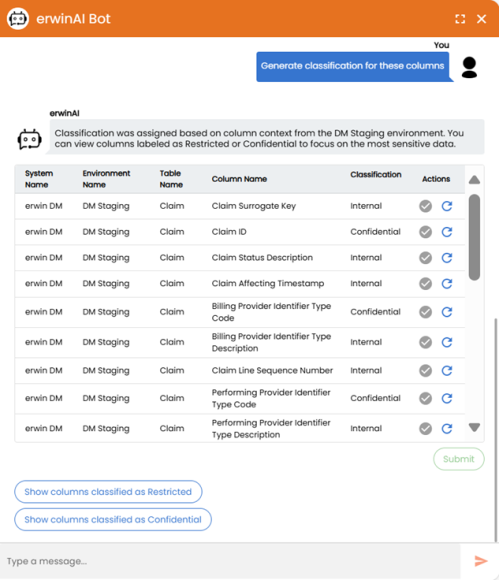
You can also filter your results using the suggested prompts or entering custom prompts.
-
Under Actions, click
 to confirm the respective classification or
  to regenerate.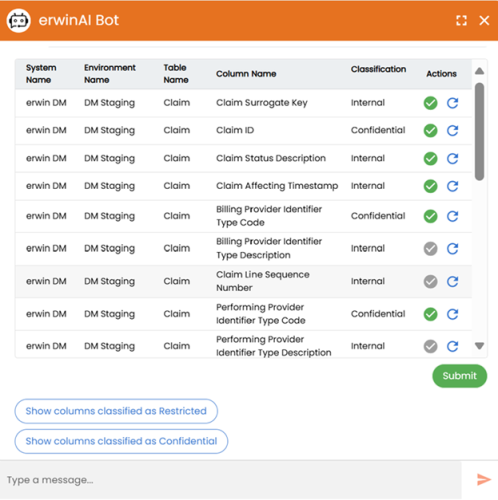
-
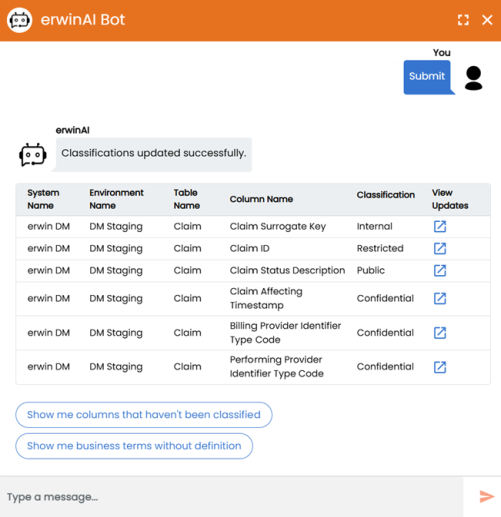
After confirming the required classifications, click Submit.
Classifications are updated successfully.
-
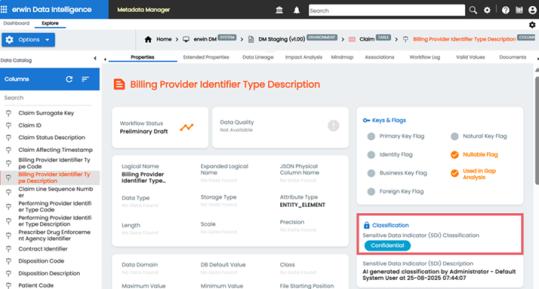
Under View Updates, click
 next to the column you want to view.
The Properties tab for the selected column opens, showing the updated classification.
Generating Definitions
To generate definitions, follow these steps:
-
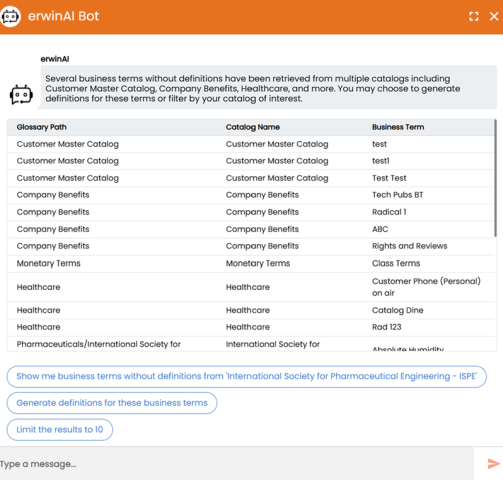
In the erwinAI Bot pane, click Show me business terms without definition.
The bot displays undefined business terms.
-
To generate definitions, click Generate definitions for these business terms.
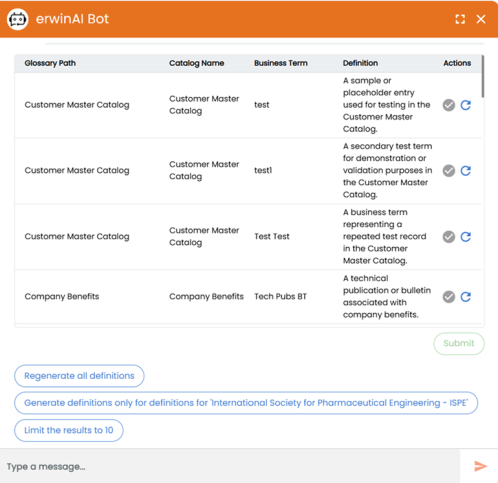
You can also filter your results using the suggested prompts or entering custom prompts.
-
Under Actions, click
to confirm the respective definition or to regenerate. 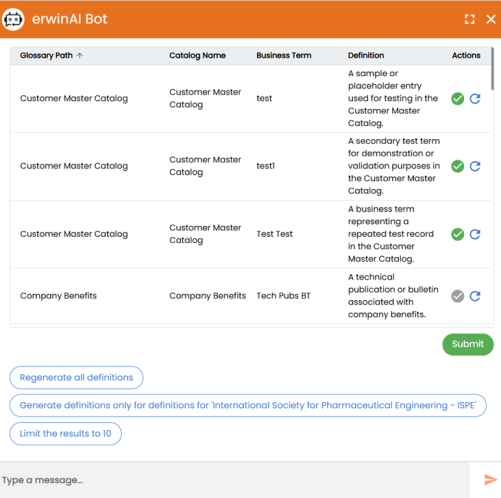
-
After confirming the required definitions, click Submit.
-
Under View Updates, click
next to the business term you want to view. -
The business term page opens, showing the updated definition.
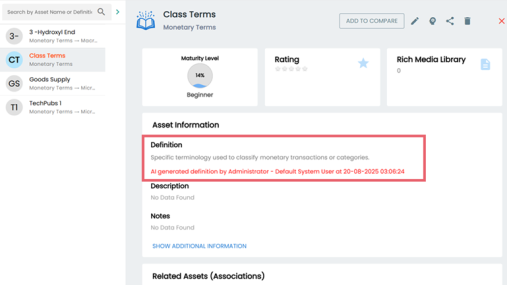
Definitions are updated successfully.
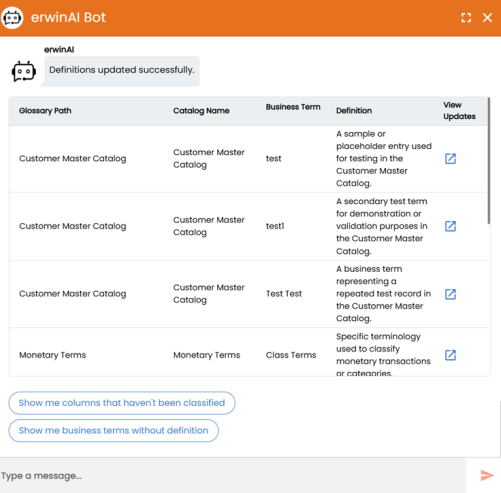
You can continue the process or close the erwinAI bot.